Six ways Hypertune tunes your PC
Hypertune optimizes your PC for gaming. It's an app for Windows 10 and 11 that reads your hardware once, then tunes your CPU, GPU, Windows, network and memory settings, and sets up a profile for each game. You choose which features it applies.CPU Overclocking
Push your processor further with CPU overclocking software tailored to your exact hardware. Hypertune squeezes performance while keeping your system stable and safe.
Hypertune uses its own overclocking algorithm, built in collaboration with Intel and AMD. It finds the fastest stable speed for your processor and stress-tests it on your hardware before applying it.

GPU Overclocking
Unlock the full potential of your graphics card with a personalized overclocking algorithm built around your specific GPU. Get higher frame rates and smoother gameplay.

Windows Debloating
Strip away the bloat and take full control of your system with a complete customization suite. Toggle advanced Windows features and fine-tune your OS for pure gaming performance.
You pick them one by one. Game Bar, Telemetry, Background Apps and Hardware Acceleration each have their own switch.

Network Optimizations
Lower your ping, cut packet loss, and stabilize your connection for competitive play. Hypertune optimizes your network settings so every shot registers when it should.
Settings include Disable Nagle's Algorithm, Protocol Bindings, Adapter Power Management and Adapter Advanced Tuning, among others, and each one has its own switch.

Memory Optimizations
Hypertune adjusts your system's memory page file for better memory management, and its built-in Smart Standby Memory Trimmer cuts unnecessary memory use. On compatible systems, Hypertune can also enable EXPO to run your RAM faster, with lower latency, for better responsiveness in games.

Game Hub
Access personalized, game-specific tweaks all from one central hub. Hypertune applies optimized profiles tailored to each title, so you get the best settings for every game you play.
Profiles currently include Valorant, Counter-Strike 2, Marvel Rivals, Overwatch, League of Legends, Escape from Tarkov, Wardogs, Apex Legends, KovaaK's, Deadlock, Aimlabs, Rainbow Six Siege, Rust, ARC Raiders and Fortnite.

FAQ
Your questions,
answered.
It reads your CPU, GPU, RAM, storage type, Windows version and driver versions, and builds a profile for that PC instead of generic settings. You turn on the features you want, and it applies only those. The tutorial walks through setup in five steps.
Yes. Even the best hardware is often "choked" by default Windows settings designed for office work, not gaming. Hypertune focuses on consistency and 0.1% lows. We eliminate the micro-stutters and input lag that high-end parts still suffer from, ensuring your hardware hits its absolute ceiling.
Hypertune is a subscription service. We opted for this model because PC optimization isn't a 'set it and forget it' task. Windows updates and game patches launch weekly; our team works around the clock to update our logic so your PC stays optimized for the latest software.
Every plan comes with a 7-day money-back guarantee. If you're not satisfied, request a full refund within 7 days of your first payment.
No. Game Hub profiles change in-game settings through each game's config files, which is the only way to change them, and that is all they change. Hypertune makes no unsafe changes. For more on safety, refunds and who makes Hypertune, see Is Hypertune safe?
Unlike manual YouTube registry tweaks that can be risky, Hypertune uses proprietary logic built by the performance specialists at Compready. Our optimizations are non-destructive and can be reverted with a single click.
Quite the opposite. Hypertune is designed to be ultra-lightweight. Once your optimizations are applied, the app consumes near-zero resources, leaving all your CPU and RAM power for your games.
We offer optional Smart Overclocking for GPUs, and for Intel and AMD CPUs. Unlike "blind" boosts, our engine runs automated stress tests on your specific silicon to find the fastest stable speed. If your cooling can't handle it, Hypertune won't apply it.
Hypertune applies only the settings you turn on. You can revert them in the app, and it does not make any unsafe changes.
- CPU Overclocking: a faster stable speed for your processor
- GPU Overclocking: clock, memory, and power tuned for your card
- Windows Debloating: gaming features you can turn back off
- Network Optimizations: settings that cut lag and packet loss
- Memory Optimizations: faster, lower-latency RAM settings
- Game Hub: a profile for each title
Remove the Windows app
Hypertune is a standard Windows application, installed with hypertune-setup.exe. You can remove it from Windows the same way you remove any other app. You do not need a separate removal tool.
Before you uninstall
Open Hypertune, go to the Restore tab, choose your most recent restore point and select Restore. Do this before you uninstall if you want Windows and hardware settings returned to how they were.
Removing the app does not cancel your Hypertune subscription. To stop billing, cancel from your account on hypertune.gg.
Windows 11
- Open Settings.
- Go to Apps, then Installed apps.
- Find Hypertune.
- Open the menu next to it and choose Uninstall.
- Confirm when Windows asks.
Windows 10
- Open Settings.
- Go to Apps, then Apps & features.
- Find Hypertune.
- Select Uninstall.
- Confirm when Windows asks.
If Hypertune is still listed
Restart your PC, then open Apps again and look for Hypertune. If it is still there, repeat the uninstall steps for your version of Windows.
Need help
If you need help removing Hypertune, contact us at:
COMPREADY,
info@hypertune.gg
Join the community
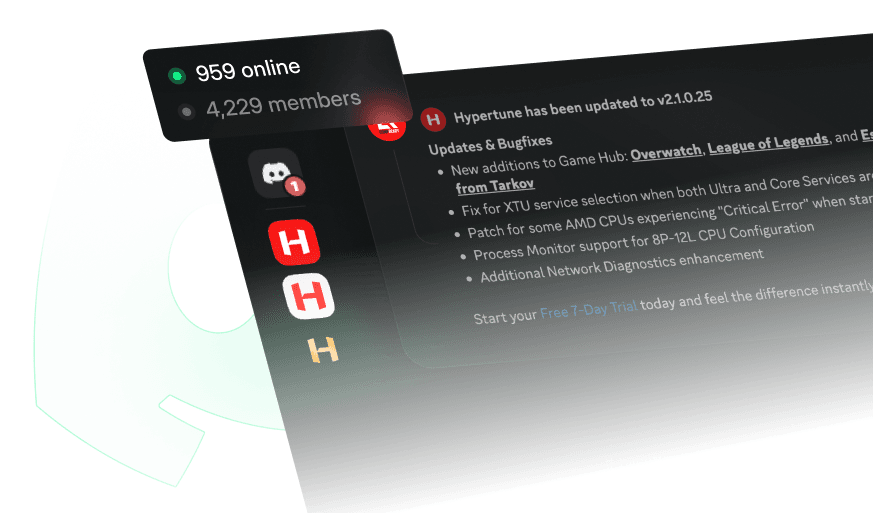
Get direct support, updates, and real-world tuning advice from 10,000+ gamers and the team behind Hypertune.
Creator program
Convert on your influence with your
community into long term recurring revenue

Join the team
We're building the future of PC performance for the generations ahead. If you want in, we want to hear from you.