Before you start
At a glance
- Time
- About 30 minutes, plus one restart.
- Cost
- Free. Everything here is built into Windows or your graphics driver.
- You need
- Windows 10 or 11, and an administrator account.
- To undo
- The restore point from Before you start puts the Windows changes back in one go. It does not undo in-game settings or BIOS changes such as XMP.
Measure first so you know what changed. Press Windows + G to open Game Bar, open the Performance widget, and note your FPS in the same spot in a game you play often. Do the same after step 8.
Close your games, then create a restore point.
Search the Start menu for Create a restore point and open it. On the System Protection tab, select Create, name it "Before gaming tweaks" and select Create again. If Create is grayed out, system protection is off: select Configure, choose Turn on system protection, then Apply. To go back later, use System Restore.
01 Update your graphics driver
New drivers fix performance problems in recent games. Start here before you touch Windows settings. Update graphics drivers with the app from your card's maker.
NVIDIA
Open the NVIDIA App, go to the Drivers tab, and install the latest Game Ready driver.

Open AMD Software: Adrenalin Edition, go to System (or type "System" in the app's search box), and install any update listed under Manage Updates.

Download and run Intel Driver & Support Assistant, which finds and installs the latest Intel graphics driver.
How to tell it worked: the driver version in the app matches the latest on the maker's site.
02 Stop startup and background apps
Apps that start with Windows keep using memory and processor time while you play.
 > Startup apps
- Press Ctrl + Shift + Esc to open Task Manager (Windows 11 and Windows 10). Select Startup apps (on Windows 10 the tab is called Startup), then right-click anything you don't need the moment Windows starts (chat apps, launchers you rarely use, updaters) and select Disable. On Windows 11 you can also type Task Manager into the Start search, or use Settings > Apps > Startup.
- Before a gaming session, close browser tabs, video calls and file syncing.
Keep your antivirus and your graphics driver app running.
03 Set the power plan to High performance
On Windows 11, type Choose a Power Plan into the Windows search bar and open it, then select High performance. On Windows 10, select the battery icon on the taskbar and drag the slider to Best performance. That slider is not on every Windows 10 PC.
If you can't change the power mode, a custom power plan may be selected. Open Control Panel > System and Security > Power Options, select Balanced, then try again.
This uses more power and can make the fans louder. Switch back when you are not gaming if that matters to you.
04 Turn on Windows Game Mode
Go to Settings > Gaming > Game Mode and make sure it is on. It is on by default, so this step is usually a check.
> Gaming> Game ModeWindows Game Mode optimizes your PC for gaming by prioritizing system resources and reducing background activity while a game is running.
05 Turn on hardware-accelerated GPU scheduling
Go to Settings > System > Display > Graphics, then open Advanced graphics settings (on some Windows 11 PCs this is Change default graphics settings). Turn on Hardware-accelerated GPU scheduling, then restart.
> System> Display> GraphicsOn Windows 10, go to Settings > System > Display > Graphics settings. Turn on Hardware-accelerated GPU scheduling, then restart. If you can't find the switch, your graphics card or driver doesn't support it. If a game stutters afterwards, turn it off again. Test it for yourself.
06 Make games use your graphics card
If your PC has both a built-in and a separate graphics card, Windows can pick the weaker one. Go to Settings > System > Display > Graphics. Games are usually listed there already. Find the game you play, select it, and set GPU preference to High performance so Windows uses your dedicated GPU. On Windows 10 the page is called Graphics settings.
> System> Display> Graphics07 Check your monitor's refresh rate
A high-refresh-rate monitor is not always set to its highest rate. To change the refresh rate in Windows 11, go to Settings > System > Display > Advanced display and pick the highest value next to Choose a refresh rate. On Windows 10, go to Settings > System > Display > Advanced display settings and pick it under Refresh rate.
> System> Display> Advanced displayIf Dynamic refresh rate is on and a game seems capped, turn it off. It can limit games that are not built for a variable refresh rate. Plug the monitor into the graphics card, not the motherboard, and use DisplayPort or the cable that came with the monitor.
08 Set each game's graphics settings
In each game, set the display mode to fullscreen and the resolution to your monitor's native one. Then lower the settings that cost the most frames first: shadows, volumetric effects and anti-aliasing.
Upscalers (NVIDIA DLSS, AMD FSR, Intel XeSS) render each frame at a lower resolution, so they raise FPS and can lower input delay as well, which makes them fine for competitive games. Frame generation is different: it adds frames between the ones your PC renders and adds input delay, so keep it off in competitive or esports games. In single-player or casual games, both are a good way to gain frames.
What to change first, by type of game:
| Type of game | Games | What to change first |
|---|---|---|
| Fast arena shooters | Counter-Strike 2, Fortnite, Valorant, Apex Legends, Marvel Rivals, Overwatch, The Finals | Aim for a frame rate at or above your monitor's refresh rate (step 7). Set shadows and effects low, keep frame generation off, and turn on NVIDIA Reflex on an NVIDIA graphics card or AMD Anti-Lag 2 on an AMD one, where the game offers it. |
| Large-map shooters | Call of Duty: Warzone, Rust, Escape from Tarkov | Big maps lean on your processor and memory as well as your graphics card. Close background apps (step 2), check memory use while you play (see Does more RAM increase FPS?), and lower view distance and shadows. |
| Single-player or casual | Story games and offline titles | Turn on DLSS, FSR or XeSS for more FPS. Frame generation adds more, and its extra input delay matters less here. |
Our game pages list the exact settings for each game.
Then note your FPS again, in the same spot you used before you started.
Advanced (optional)
Do these only after the eight steps, and only if you still want more.
 Online games
Use a wired Ethernet connection instead of Wi-Fi, and pause downloads and cloud syncing while you play.
 Storage and heat
Install games on an SSD rather than a hard drive. If FPS drops after a few minutes of play, the PC may be too hot. Clean dust from the fans and filters, and check that air can flow through the case.
 Faster memory (XMP or EXPO)
Most RAM runs slower than its rated speed until you turn on its profile in the BIOS. Follow the guide for Intel and most boards (XMP) or for AMD (EXPO). If the PC fails to start afterwards, clear the CMOS as the board's manual describes. A restore point does not undo this: to go back, turn the profile off in the BIOS.
 Overclocking
Do not raise your processor or graphics card above stock speed yourself. Manual overclocking can void warranties, needs cooling headroom, and can crash the PC if you push too far. Leave overclocking to Hypertune, below.
Where Hypertune fits
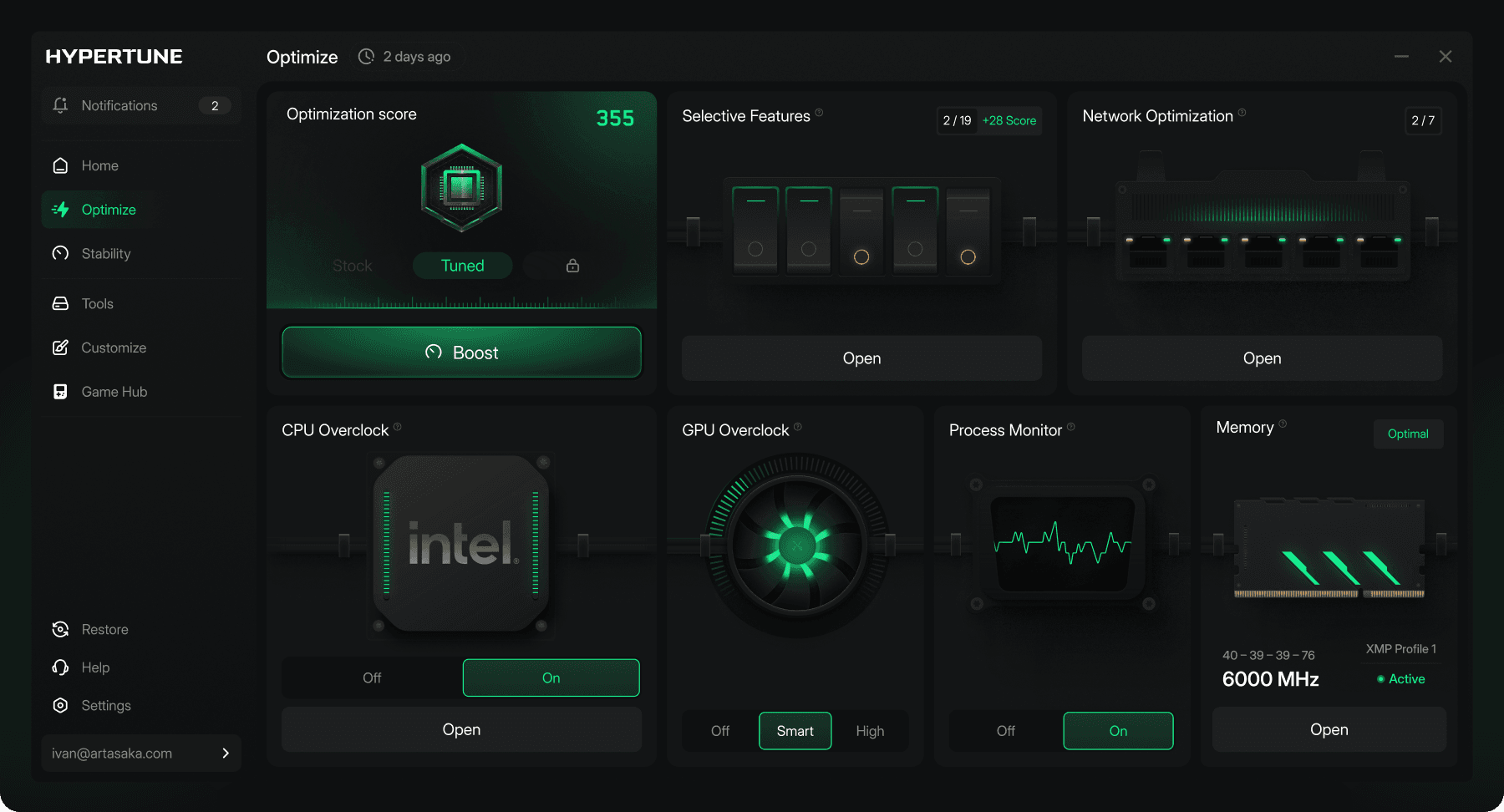
The eight steps above are free. Hypertune is a Windows app for the slower work: CPU Overclocking, GPU Overclocking, Windows Debloating, Network Optimizations, Memory Optimizations, and Game Hub.
Hypertune reads your CPU, GPU, memory and storage once, then applies only the features you turn on.
 355


Hypertune is an Intel partner and an AMD partner, and supports NVIDIA graphics cards. On Intel processors, CPU tuning is built on Intel's Extreme Tuning Utility software development kit. On AMD processors, CPU tuning is built on AMD's Ryzen Master software development kit. Hypertune is COMPREADY's product, not an Intel or AMD product. GPU Overclocking works on NVIDIA and AMD graphics cards.
Game Hub changes in-game settings through each game's config files. On NVIDIA graphics cards, its profiles also apply NVIDIA Profile Inspector files (.nip), which change settings at the driver level.
Hypertune creates a Windows restore point. To undo a change, open the Restore tab, select the most recent restore point, and select Restore.
Hypertune costs $9.99 a month or $69.99 a year.
 Hypertune makes no unsafe changes.
Users see up to 60% higher FPS.